Booking a Call by Hand
How to book a Membership Details call for a prospect in HighLevel, set their time zone, and move a call to a new time. The video runs under two minutes; the same steps are written out below it.
Internal video, for the team only. Keep it inside the team, and don't send it to contractors, homeowners or anyone else.
The walkthrough
1Why the time zone matters
A prospect who books on our booking page gets their time zone saved automatically. A prospect you book by hand does not. With no time zone saved, HighLevel treats them as Pacific, because the account runs on Pacific time.
Their time zone sets the time printed in their reminder texts and emails, and when those reminders send (6 AM to 8 PM their time). Without it, a Texas prospect reads a time two hours off from their own clock.
The call itself lands on the calendar at the right moment either way. Only the prospect's reminders depend on this step.
2Book the call
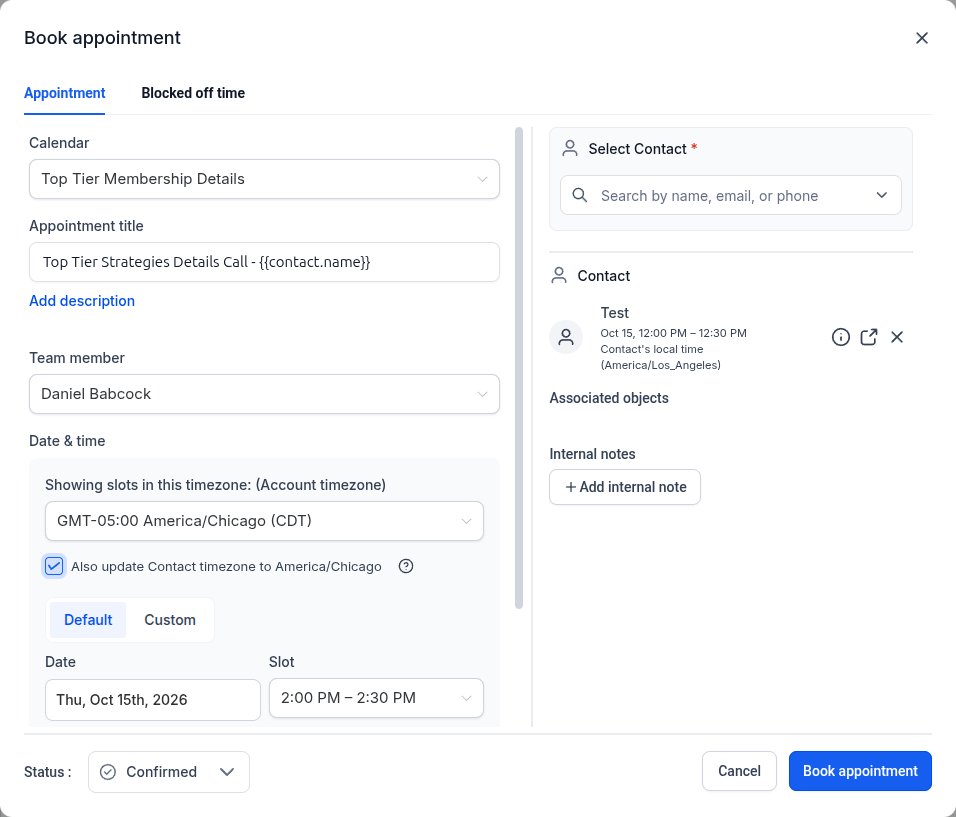
Open Calendars and click New at the top right. For Calendar, pick Top Tier Membership Details.
Under Select Contact, search the prospect by name, email or phone, and click them. Pick the contact before the time zone, so the checkbox below shows up.
Under Date & time, click the time zone box and type a city in their zone, then pick it from the list. Most of Texas is Central: type Chicago. El Paso and the far west corner of Texas are Mountain: type Denver.
Tick Also update Contact timezone. That saves the zone on the prospect's contact.
The time slots now show in the prospect's time. Pick the date and slot, then click Book appointment.
3Fix it on the contact
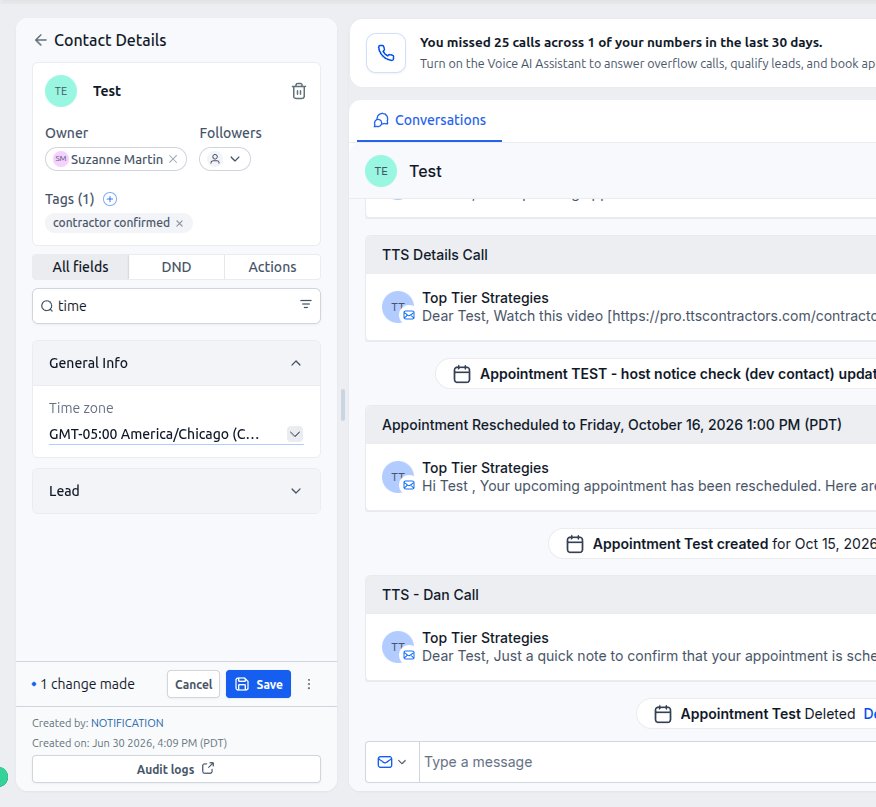
If the checkbox didn't show up, or you forgot to tick it, open the prospect's contact.
In Search fields and folders, type time. The Time zone field comes up. Click it, type the city, and pick it from the list.
Then click Save at the bottom of the fields panel.
To check your work any time, search time on the contact the same way. A blank field means their reminders will use Pacific time.
4Move a call
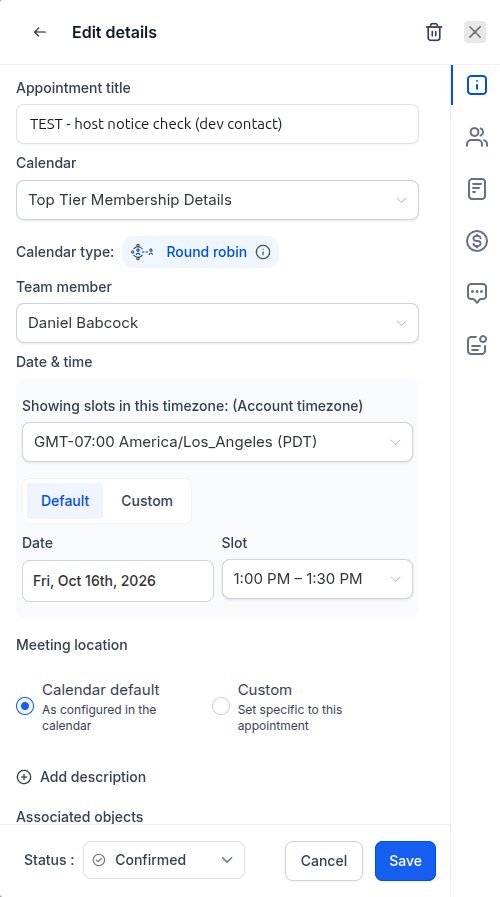
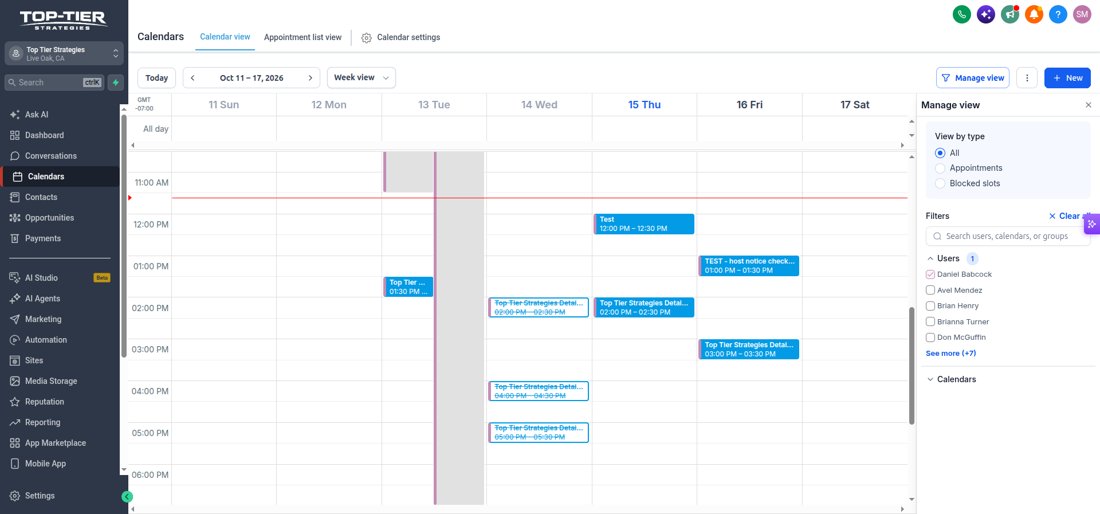
In Calendars, click the call, then click the pencil at the top of the panel.
In the time zone box, pick the prospect's zone so the slots show in their time. Pick the new date and slot, then click Save.
The prospect gets one email with the new time, and their 24-hour and 1-hour reminders start over for the new time. The booking confirmation text and email don't repeat.