Fathom Setup: Your Call Transcripts File Themselves
One-time setup, about two minutes. Do it once, in your own Fathom account.
The setup
Have the address Suzanne sent you open before you start. The webhook lives inside an API key, so you make the key first and the webhook second.
-
Settings, then API Access
Sign in to Fathom. Click Settings, the gear at the top right. Scroll down to the section headed API ACCESS and click Add on the API Access card. Ignore the MCP Server card underneath it.
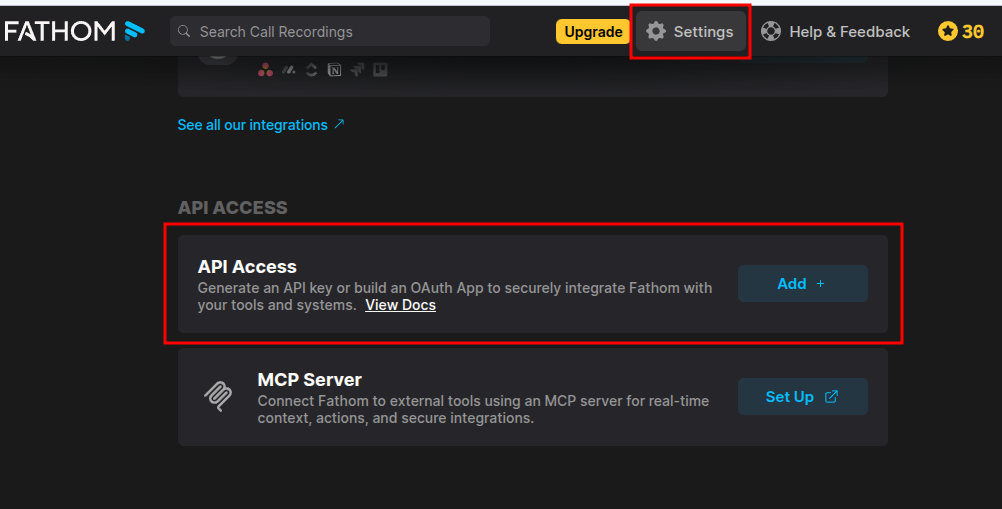
Settings is the gear at the top right. API Access is well down the page.
-
Generate Api Key, the one on the left
You get two choices, Generate Api Key and Create Public App. Take Generate Api Key. The other one is for building an app other Fathom users install, which is not what this is.
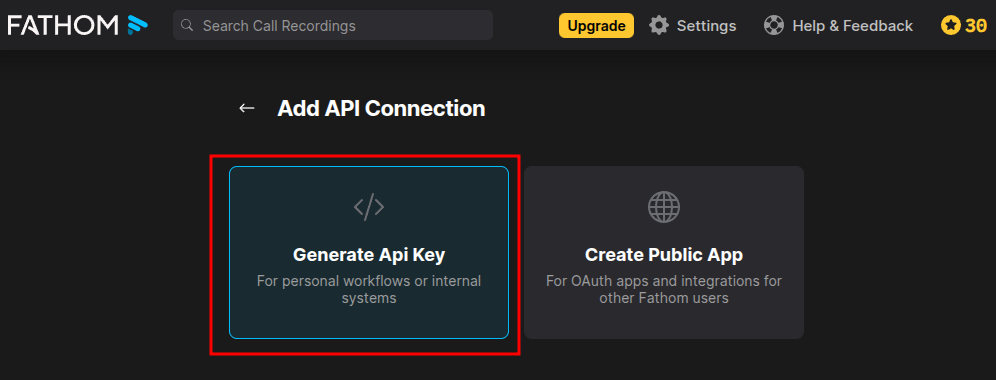
Left one.
-
Name it and create it
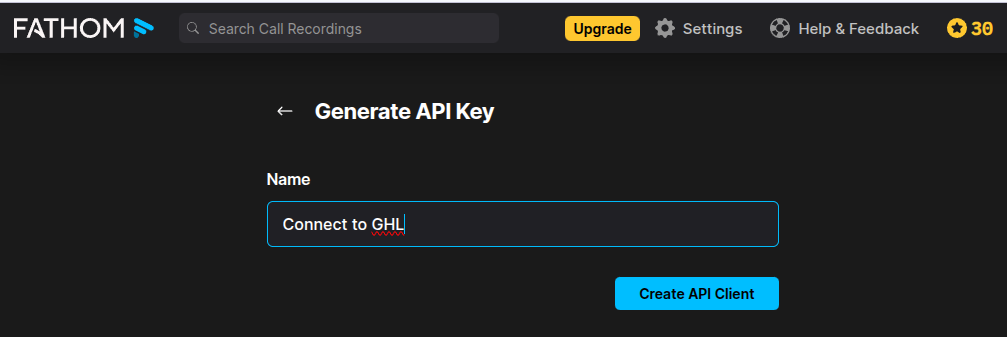
Give it a name you will recognize in six months. Connect to GHL is a good one. Click Create API Client.
-
The key screen: read it, then move on
Fathom shows you an API Key and a Webhook Secret, and tells you they are only visible once. You do not need either one. We are not using them, so there is nothing to copy and nothing to send anybody. Click Continue.
Do not screenshot that screen. Those two values are passwords to your Fathom account. Once you click Continue they are hidden for good, which is exactly what you want.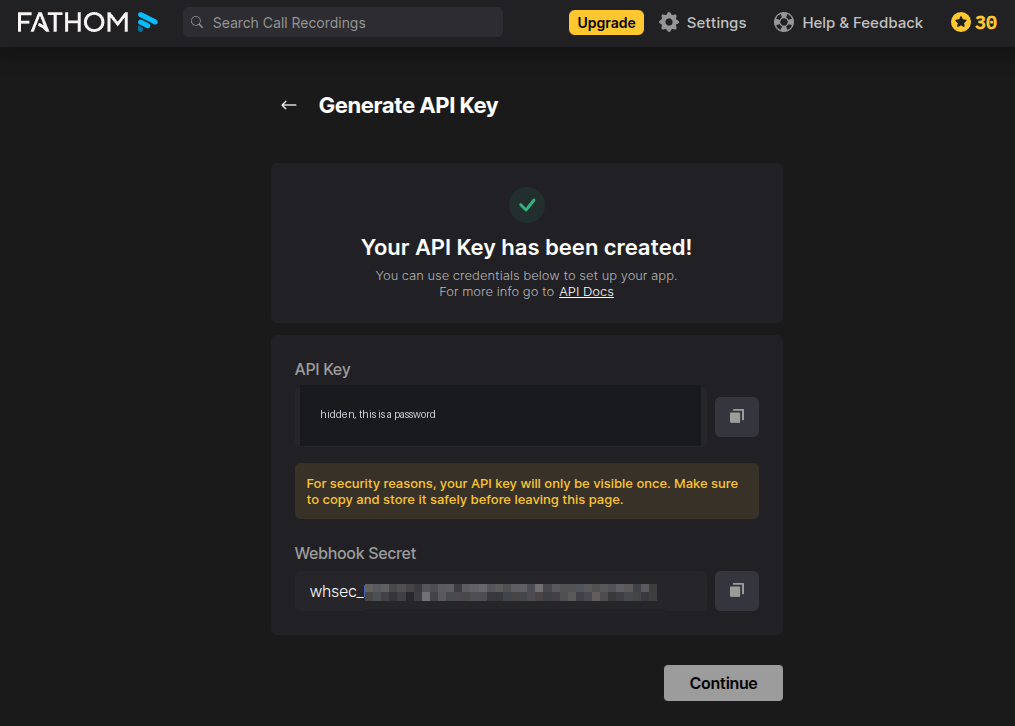
The key is blacked out here on purpose. Yours will show a real one. Leave it, click Continue.
-
Add Webhook
You land on a page named after your key, showing the key and secret starred out. Click Add Webhook, the small blue link under them.
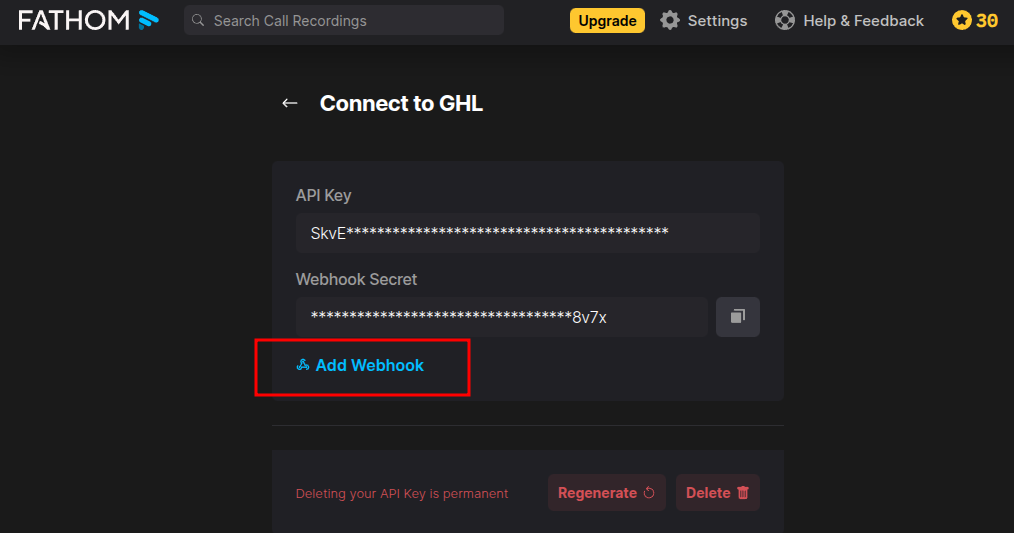
Ignore Regenerate and Delete at the bottom.
Do not delete this key later. Your webhook lives inside it, so deleting the key takes the webhook with it and your transcripts quietly stop filing. If you ever do delete it, tell Suzanne and set it up again from step one. -
Fill in the one box and flip two switches
Destination URL: paste the address Suzanne sent you, exactly as sent.
Scopes: turn on My Recordings. Leave External Recordings off. The two team options are greyed out on our plan, which is fine, we do not need them.
Events: turn on Transcript, and only that one. Leave Action items, Summary, and CRM Matches off. Transcript is the one that carries what was said.
Click Create Webhook. That is the whole setup. Send Suzanne a message so she knows to watch for your next call coming through.
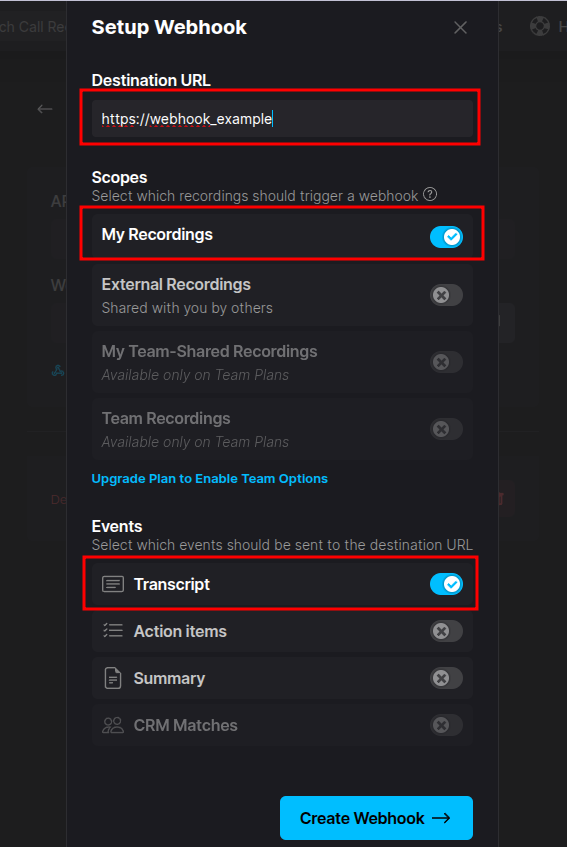
The address shown here is a placeholder. Yours is the one Suzanne sent you.
Two things that decide whether it works
How you know it worked
After your next call, give Fathom a few minutes to finish processing, then open that contractor's contact in GoHighLevel and look at the notes. The summary and transcript should be sitting there as a note. If it has not landed an hour later, tell Suzanne who the call was with and roughly when. It is usually one of the two things above.
What changes for you day to day
- You are done pasting Fathom share links onto contacts.
- Run the call the same way you always have.
- The next person who opens that contact can read what was said.
Top Tier Strategies, internal. Questions go to Suzanne.