Prospect Map Tutorial
How to find contractors to call on the Prospect Map and add them to HighLevel. The video runs about four and a half minutes; the same steps are written out below it.
Internal video, for the team only. Keep it inside the team, and don't send it to contractors, homeowners or anyone else.
The walkthrough
1Open it
The Prospect Map is where you find the contractors you're going to call, and where you put them into HighLevel in a couple of clicks.
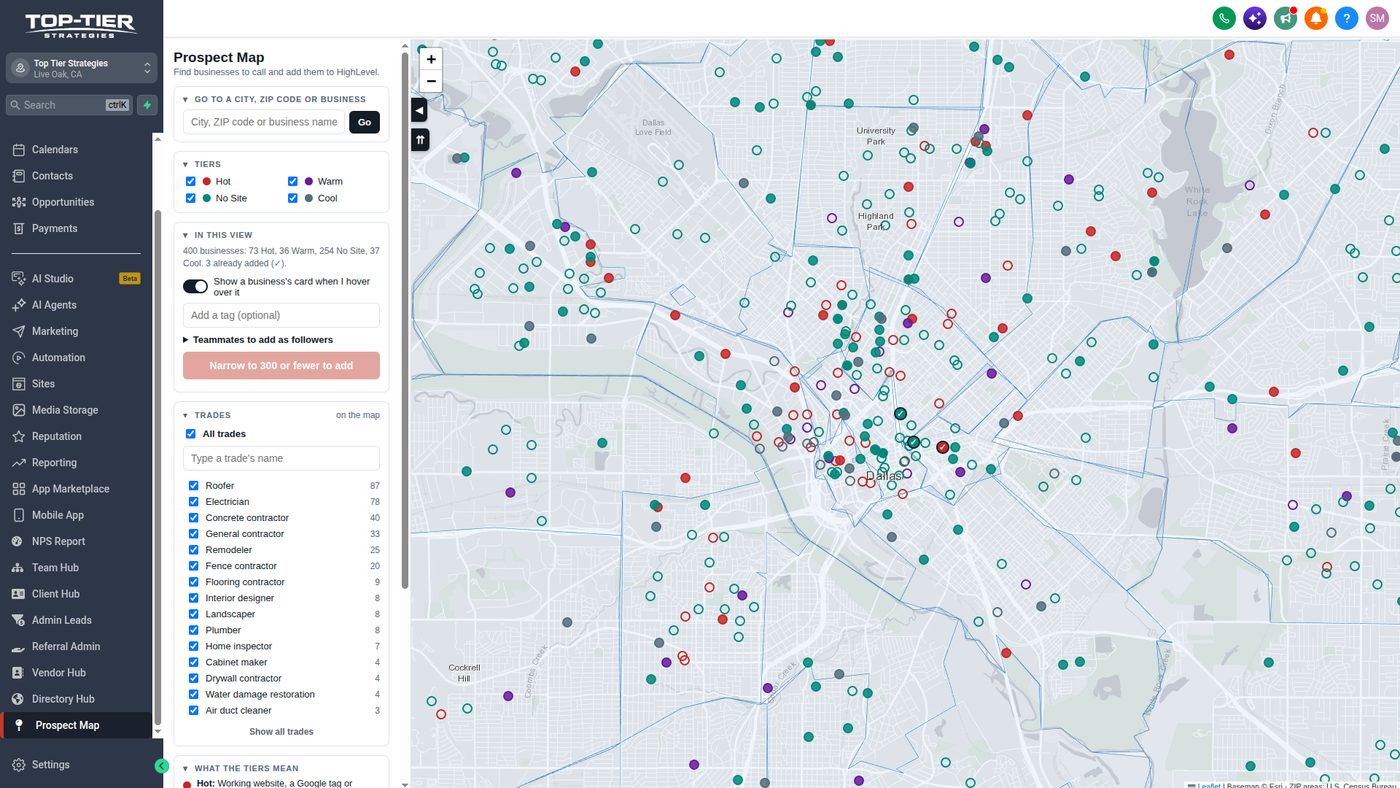
In HighLevel, click Prospect Map in the menu on the left. It opens zoomed in on central Dallas, with the side panel on the left.
2Get to your area
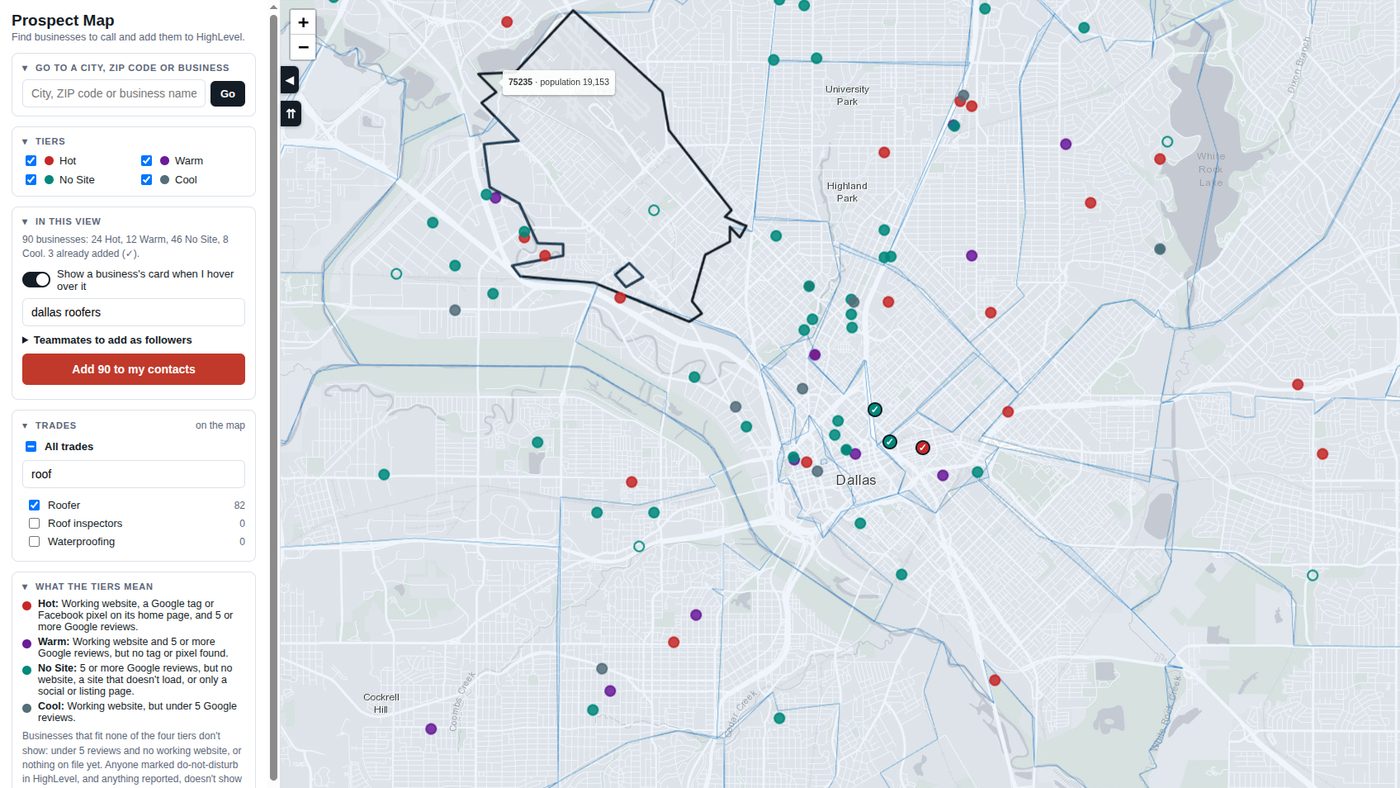
Drag and zoom the map like any other map. Or type a city or a ZIP code in the search box and click Go. A business name works there too.
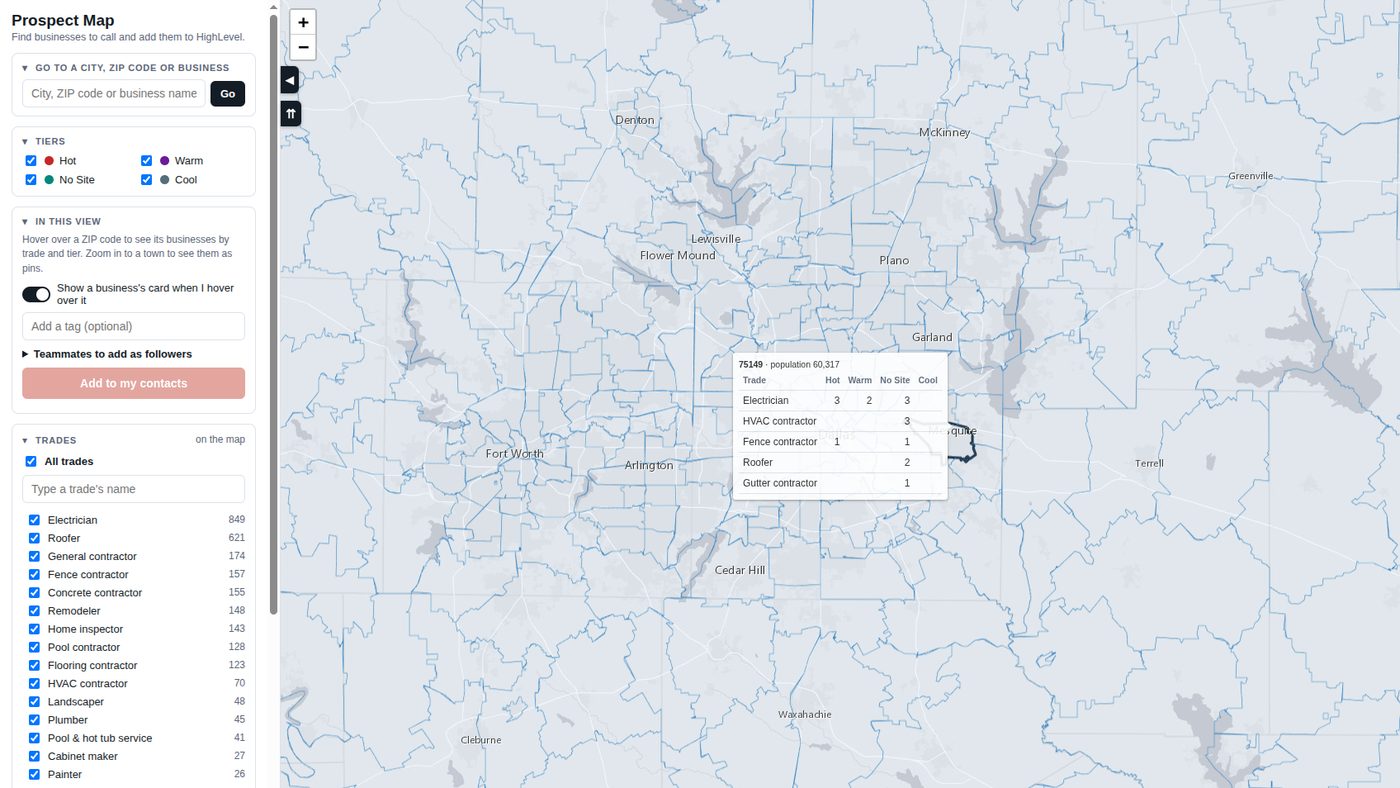
Zoomed out to about county size, hover over a ZIP code to see how many contractors it has. Zoom in to a town, and each contractor shows up as a pin.
3Pick your trades and tiers
Every contractor on the map sits in one of 4 tiers, and each tier has its own color:
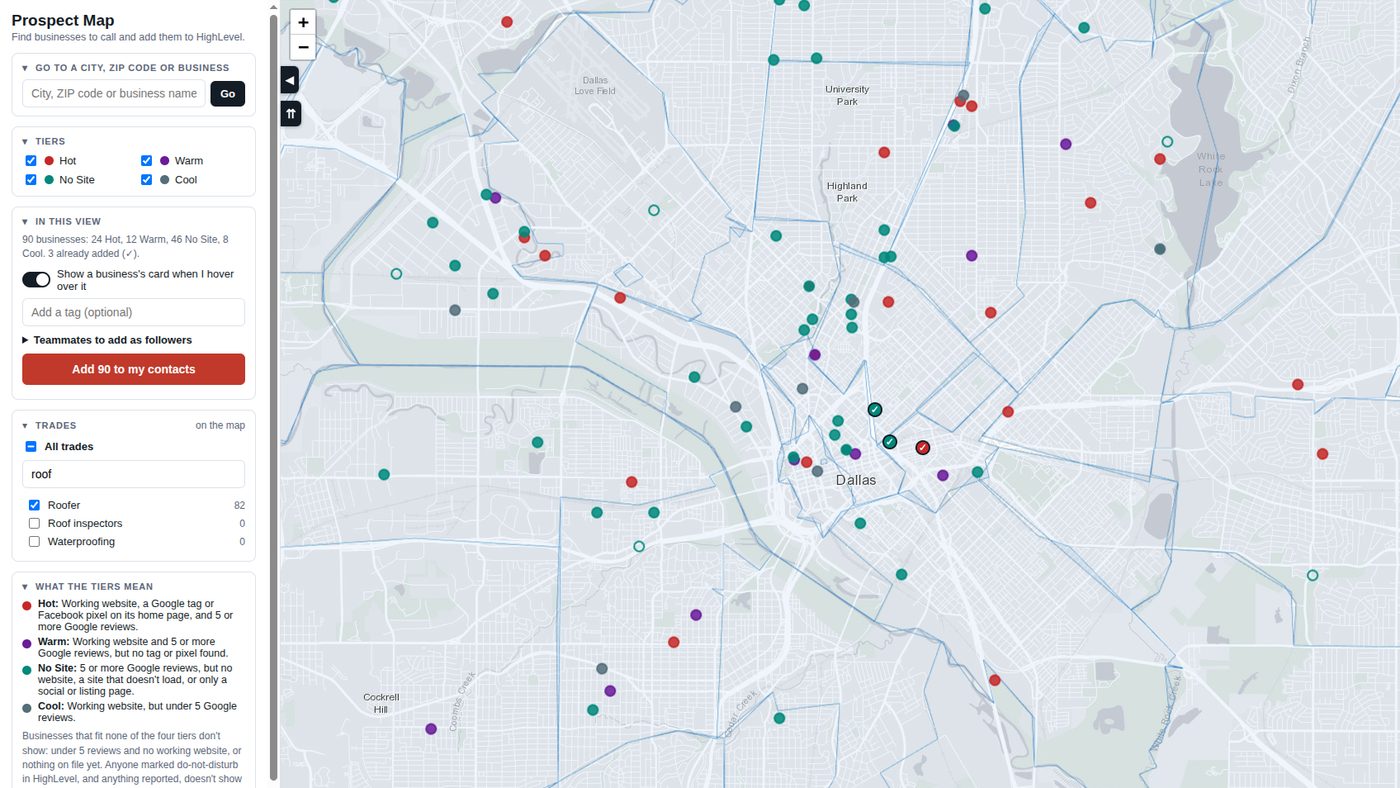
- Hot: a working website, a Google tag or Facebook pixel on its home page, and 5 or more Google reviews.
- Warm: a working website and 5 or more reviews, but no tag or pixel.
- No Site: 5 or more reviews, but no website, a site that doesn't load, or only a social media or listing page.
- Cool: a working website, but fewer than 5 reviews.
The definitions are also at the bottom of the side panel. Under Tiers, uncheck any tier you're not calling today.
Under Trades, everything starts checked, with the biggest trades on top. Uncheck All trades, type the trade you want in the box, and check just the ones you're calling today. The number beside each trade is how many are on the map right now, for the tiers you've checked.
Anyone marked do-not-disturb in HighLevel is left off the map.
4Read the card
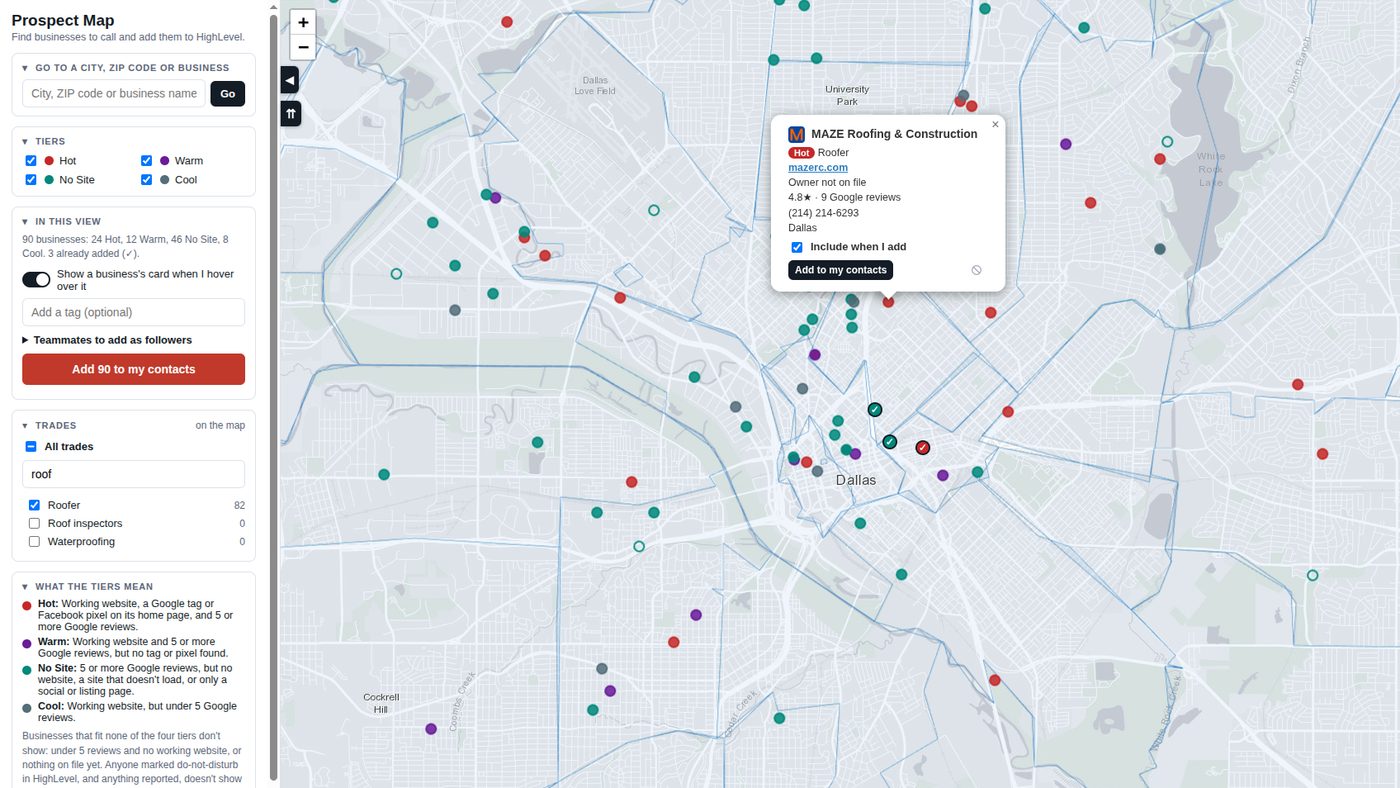
Hover over a pin and its card opens. If the cards get in your way, turn off the switch that says Show a business's card when I hover over it. Clicking a pin still opens it.
The card shows the tier and trade, the website, the owner's name when we have it, the Google stars and reviews, the phone number and the address. A hollow pin means we don't have the exact address spot yet, so it sits in the middle of its ZIP code.
When the contractor is already in HighLevel, a person icon shows at the top of the card. Click it and the contact opens in a new tab.
5Report a business that's wrong
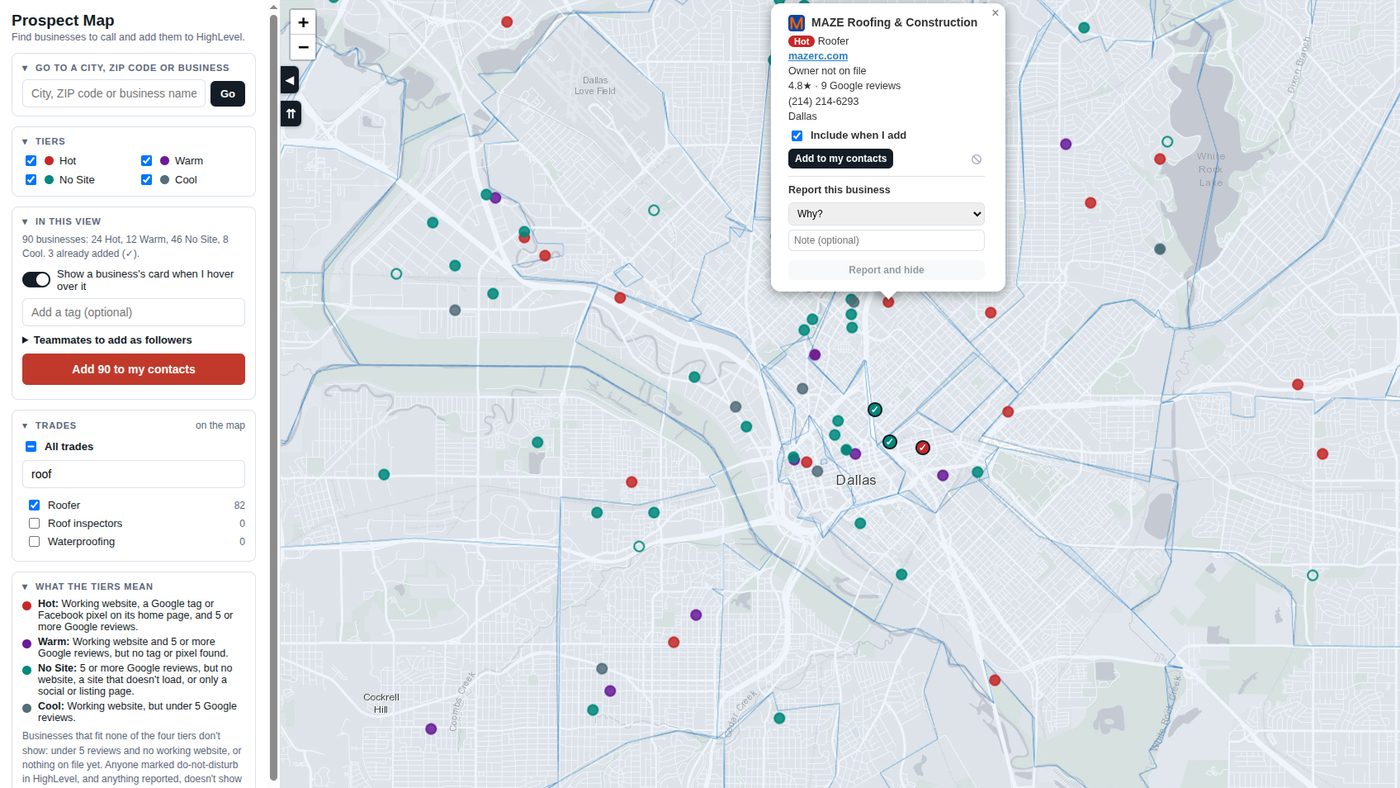
Sometimes a business shouldn't be on the map: it isn't local, it's the wrong trade, it's a chain or franchise, or the website is wrong.
Click the circle with the line through it, pick why, add a note if you want, and click Report and hide. It comes off the map for everybody, and an admin decides whether it stays off.
6Add them to your contacts
Zoom in until you see pins, then look at the box called In this view. It counts what's on screen by tier, and the button underneath says how many it'll add, like Add 42 to my contacts.
That button adds exactly what's on your screen, for the trades and tiers you've checked. If there's one you don't want, open its card and uncheck Include when I add. To add just one, open its card and click the black Add to my contacts button.
You can add up to 300 at a time. Over 300, the button says Narrow to 300 or fewer to add: zoom in closer, or uncheck a trade or a tier, until it shows the count again.
Type a tag in the box if you want one. Open Teammates to add as followers and tick anyone you want following along. Then click the button and confirm.
Each contractor becomes a contact, tagged cold-call-list, plus a tag for its trade and one for its tier. It also gets an opportunity in the first stage of the Cold Calling pipeline, with your name on it.
Anybody already in HighLevel keeps the person who looks after them now, and anyone marked do-not-disturb gets skipped. The panel tells you how many and why. Every contractor you added then shows as added on the map, with who added them and when.
7Find them in HighLevel
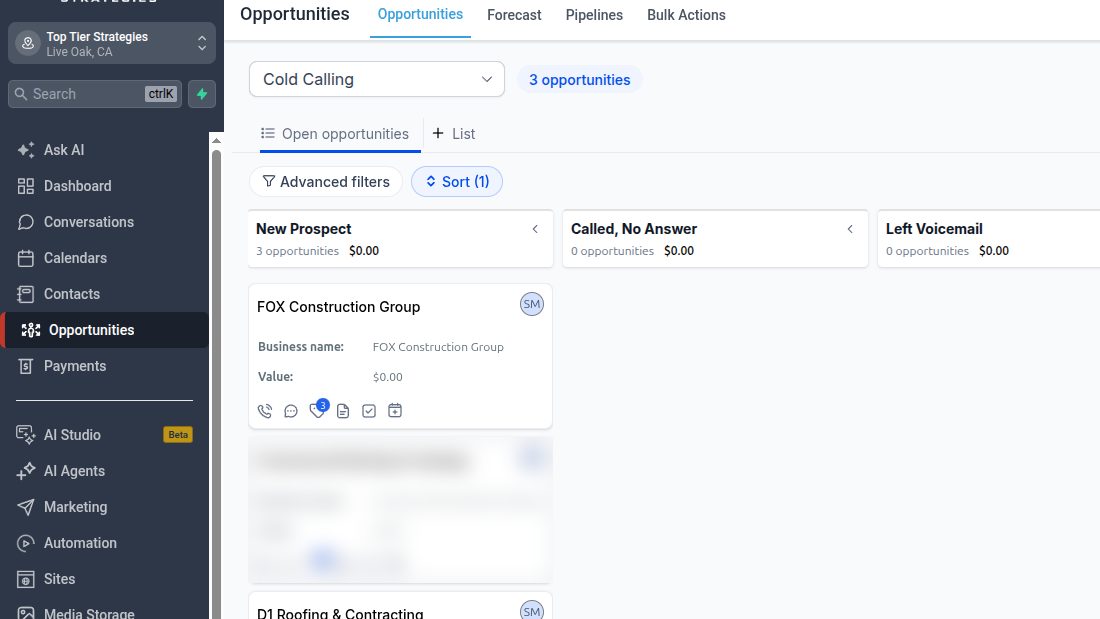
Now go call them. Open Opportunities, pick the Cold Calling pipeline, and they're sitting in the first stage with your name on them.
Or open Contacts and filter by the cold-call-list tag, or by the tag you typed. Save that filter as a smart list, and you've got today's calls in one place.